Instruction
App Version: v1.6.0 or later
Introduction – Welcome to Sentarm!
Sentarm is your smart and flexible alarm assistant.
Working alternate weeks, rotating shifts, or a custom schedule? Sentarm handles even the most complex routines with ease.
Designed with a minimalist UI and intuitive interactions, setting alarms becomes simple and pleasant.
Built-in holiday recognition means no more being startled awake on holidays — or forgetting to turn alarms back on.
If the system alarm isn’t cutting it, Sentarm might just be the better choice.
You can find an introduction to the core features below and continue to explore them as you use them.
Sentarm is actively developing more features. Feel free to share your great ideas with us by Contact.
1 Use Built-in Calendars to Set Alarms
The process is very simple and works much like the system’s built-in alarm. Just tap the + button in the top-right corner of the alarm page to create your own alarm!
Key differences from the system alarm:
- Supports repeat rules based on alternating weeks or rotating shifts
- Supports special ringing rules, such as skipping on public holidays or ringing on official workdays
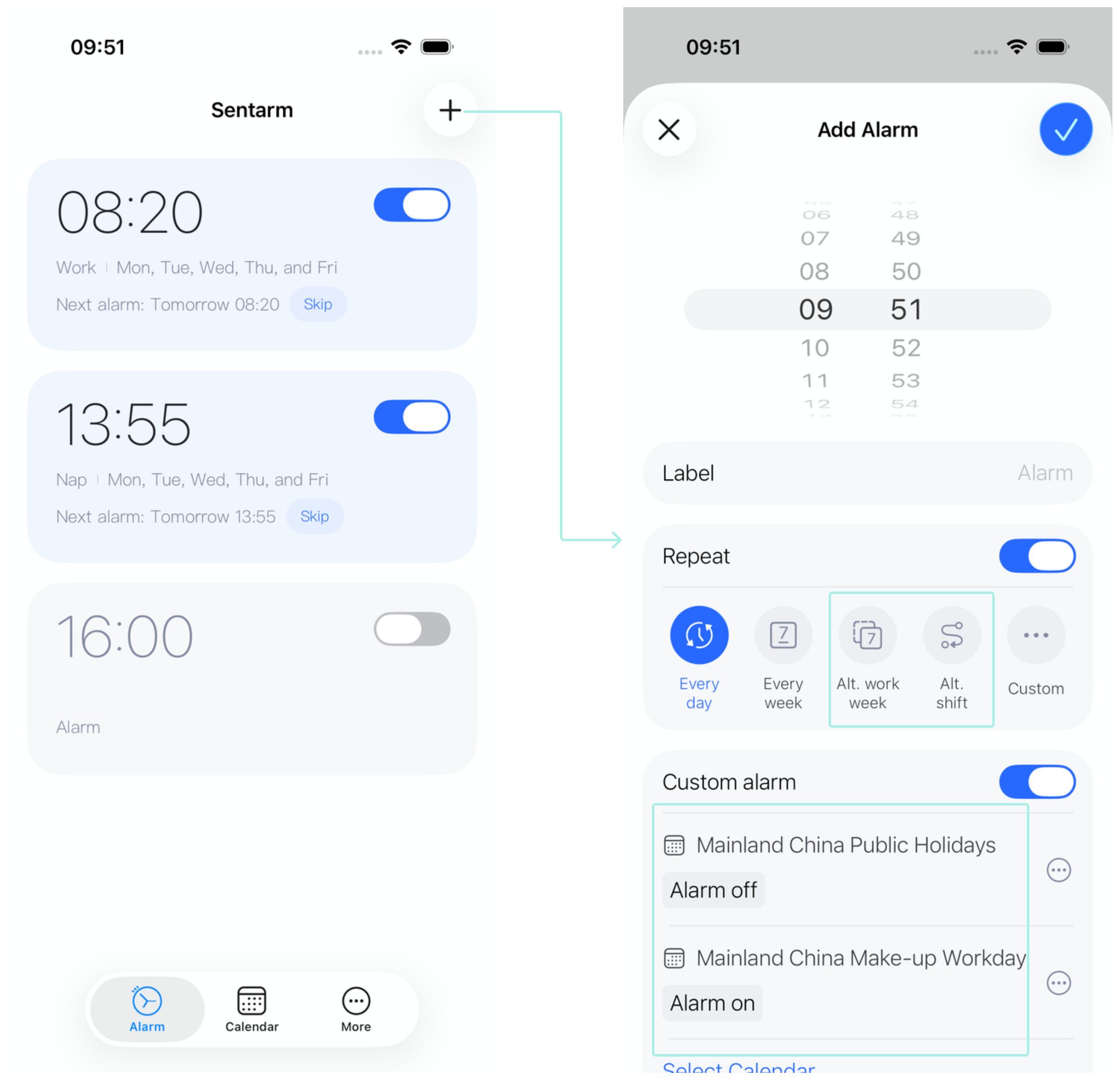
Confirm and save — that’s it!
If the built-in calendars aren’t enough, feel free to contact us anytime to request more.
2 Set Alarms with Custom Calendars
If the built-in calendars don’t meet your needs, or your schedule requires more flexibility, you can create your own calendar with the Custom Calendar feature!
Once created, a custom calendar can be used both as the repeat logic for new alarms and as the special ringing logic for existing alarms.
Example 1: Flexible Shift Scheduling
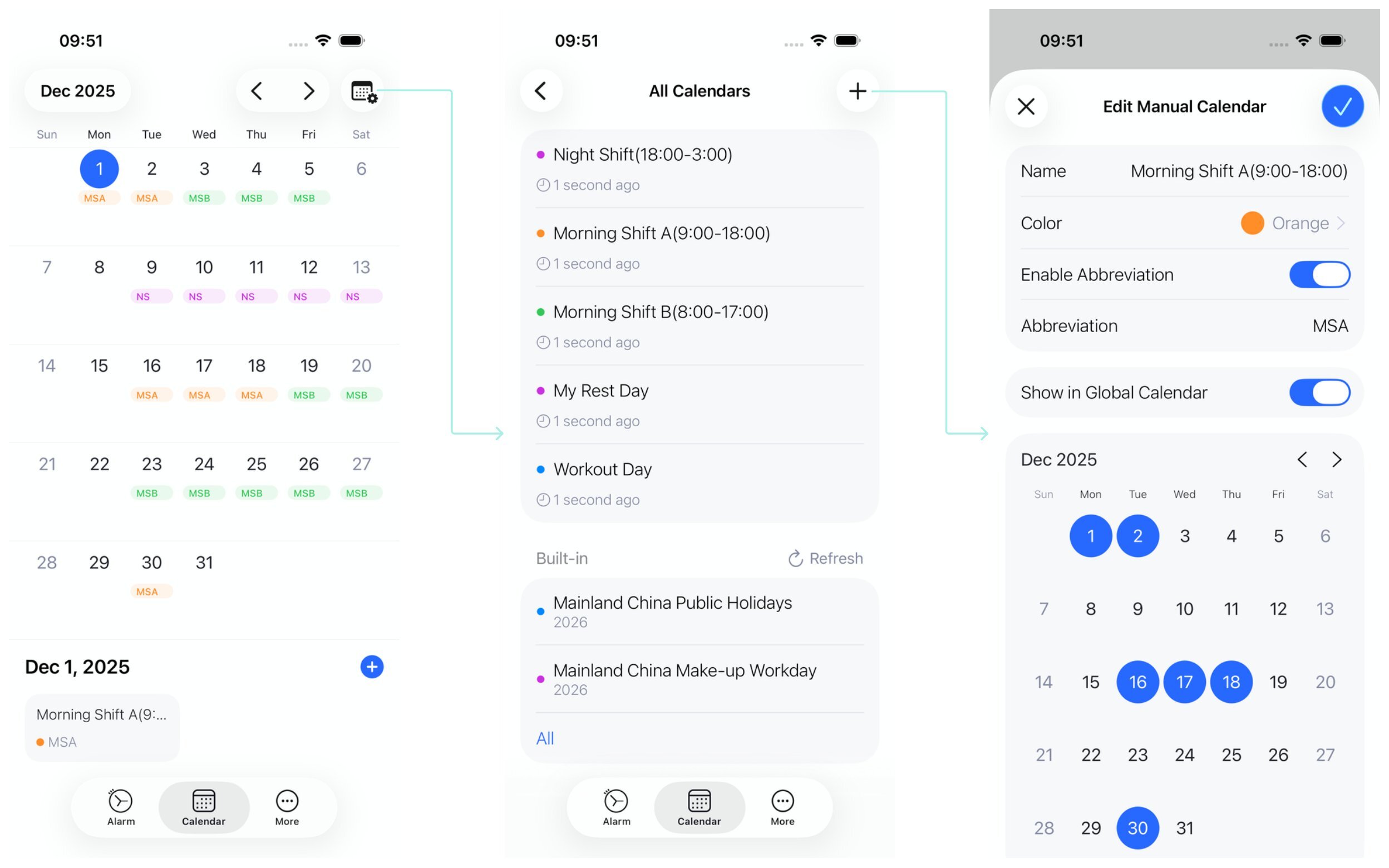
If your shifts can’t be covered by weekly cycles, alternating weeks, or rotations, you can create a custom calendar so alarms repeat according to its dates.
- Create a custom calendar
- Add an alarm and set the custom calendar created in the previous step as its repeat option.
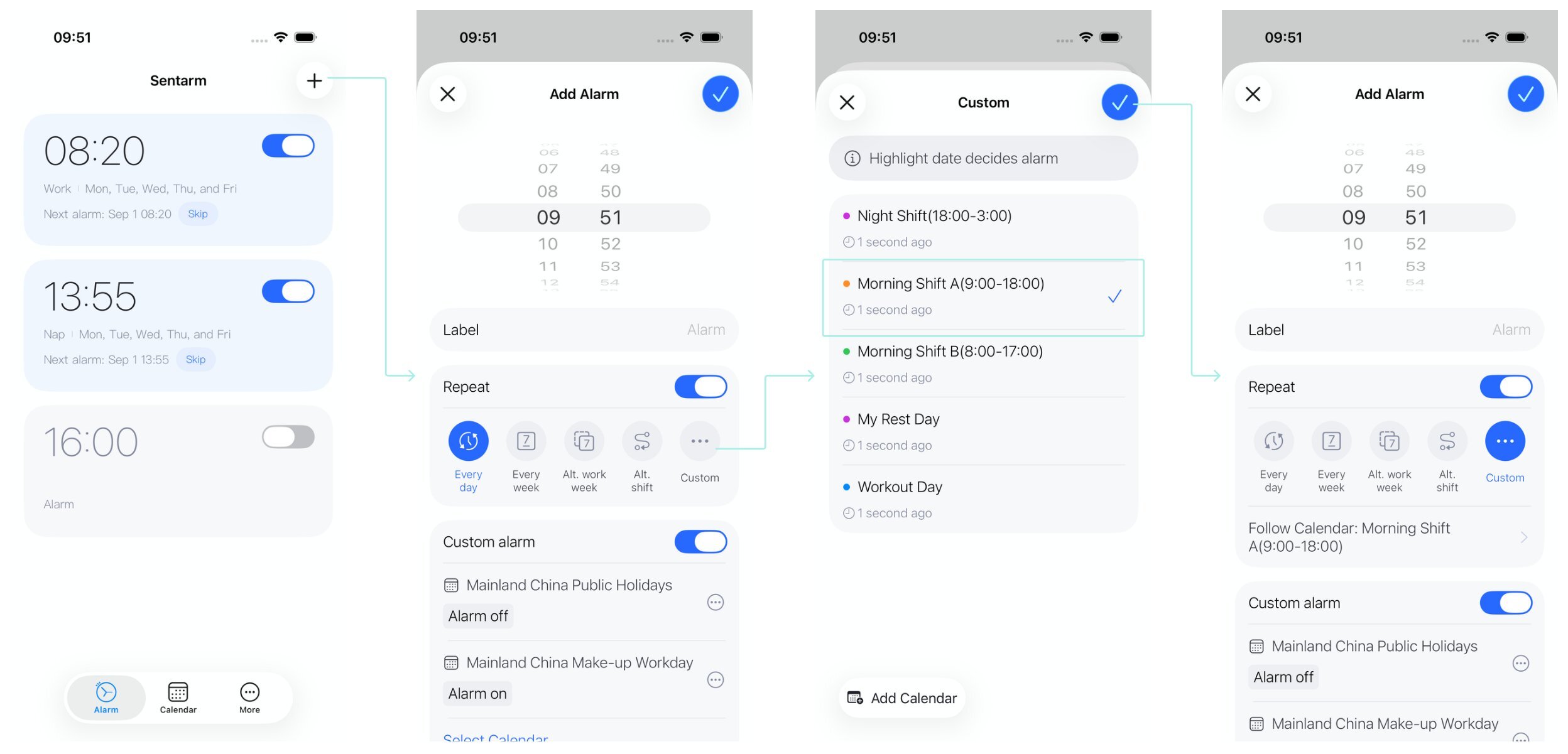
Afterward, just update the custom calendar, and the alarm will follow its specified dates.
Example 2: Early Wake-Up for Workout Days
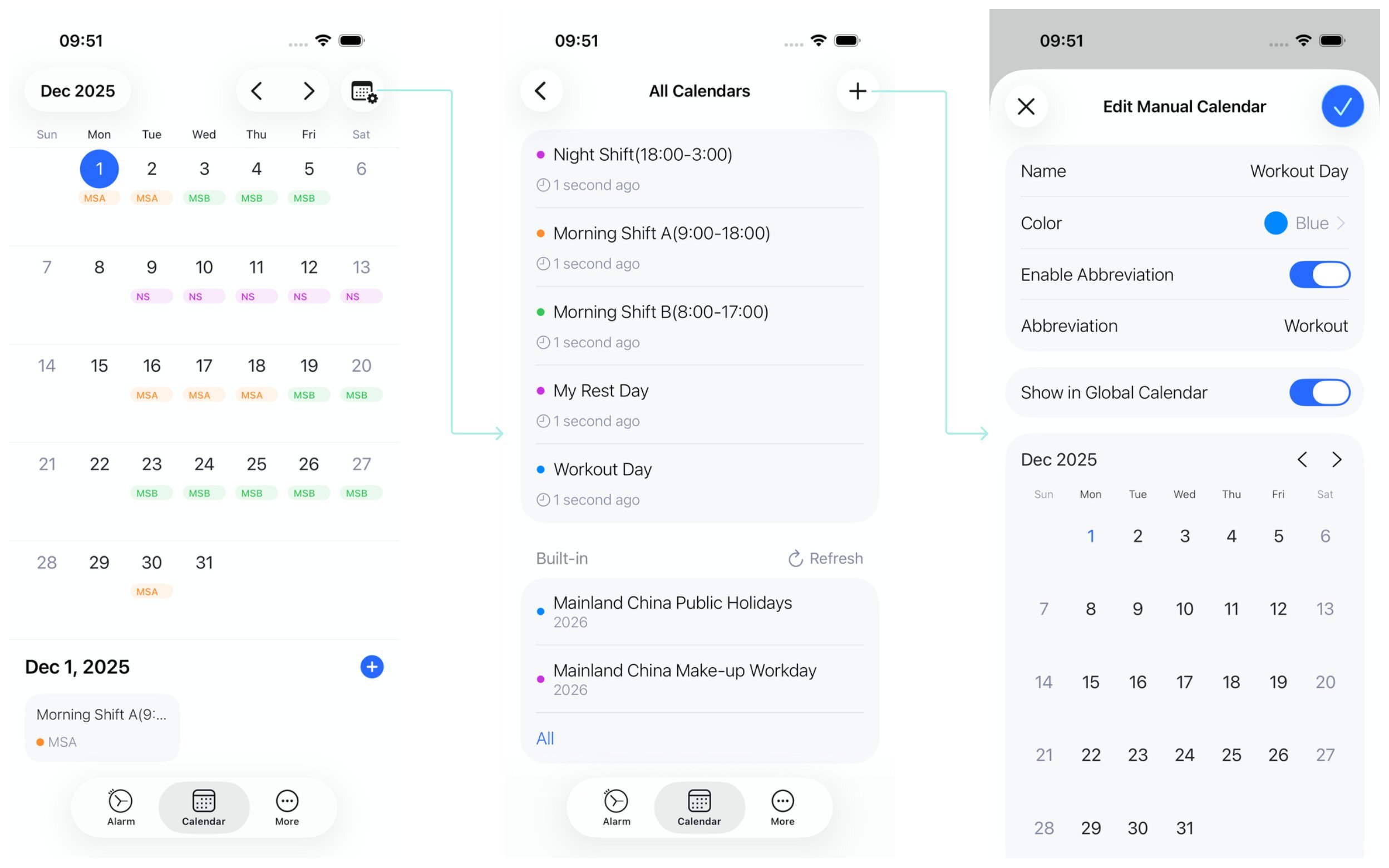
If your schedule is already covered by weekly cycles, alternating weeks, or rotations, and alarms skip on public holidays as expected — but you still want alarms to ring 60 minutes earlier on workout days for enough training time — you can create a workout calendar.
- Create a custom calendar
- Add an alarm, set the repeat option, then assign the custom calendar created in the previous step as its special alarm logic, with an early-ring setting
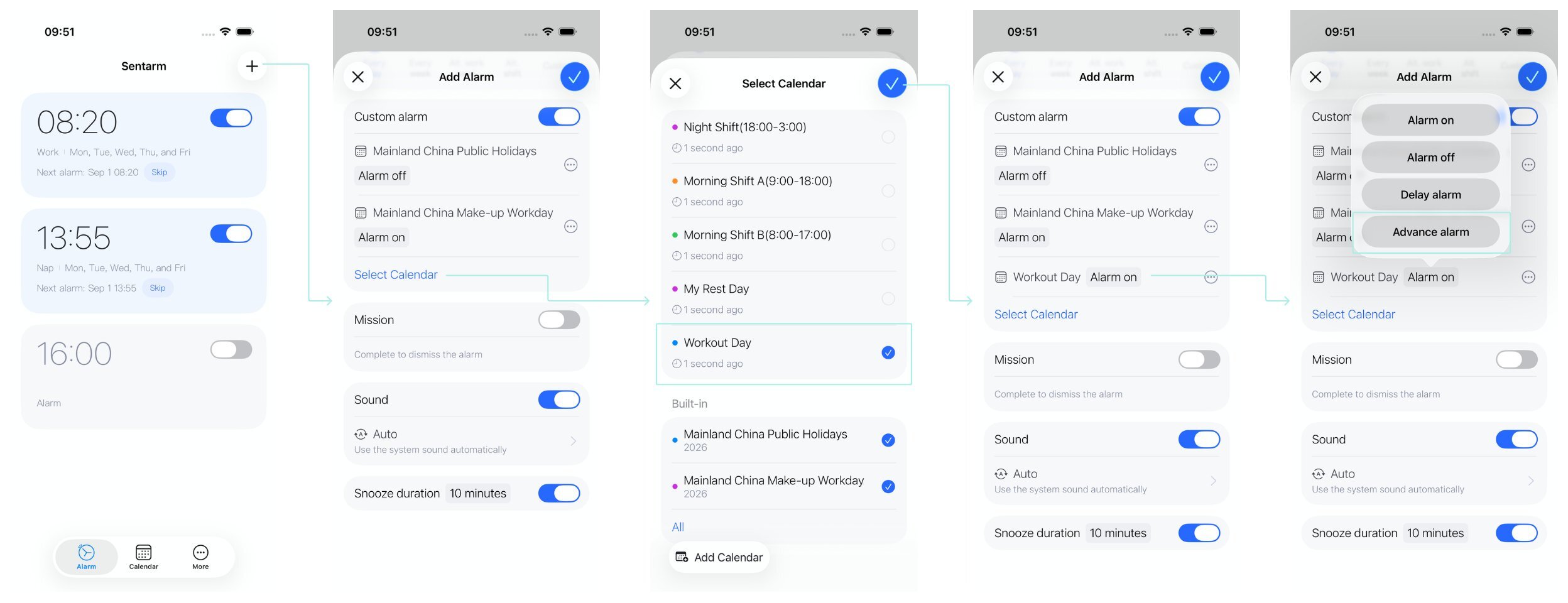
Afterward, just update the custom calendar, and alarms will automatically ring earlier on the specified days.